Estimated reading time: 8 minutes

Most enterprise-grade servers are equipped with Out-of-Band (OOB) service modules, empowering Administrators and Engineers to remotely access and control various server aspects, such as power state, BIOS settings, and more. You may recognize these OOB solutions by names like the Integrated Dell Remote Access Controller (iDRAC) for Dell servers or the Integrated Lights-Out (iLO) for HP Enterprise servers. Unauthorized access can have critical consequences, especially if such actions go undetected for extended periods. Fortunately, Aria Operations for Logs (formerly vRealize Log Insight – vRLI) can monitor and notify responsible parties if such events occur.
In this article, we will configure Aria Operations for Logs to notify administrators via email if unusual logon activity is detected. Notification methods are not limited to email; webhooks can be configured to relay custom alerts to platforms such as Zoom, Google Chat, and more. We will explore webhooks another time, but know that the option is available. We will also focus on configuring the Dell iDRAC to forward syslog messages to Aria Operations for Logs. The same concept can be applied to HPE and other server brands, but the steps will vary.
Objectives
- Configure the server iDRAC to forward syslog messages to Aria Operations for Logs.
- Install the Dell iDRAC Content Pack within Aria Operations for Logs.
- Identify syslog messages which indicate successful logon activity.
- Create an alert definition within Aria Operations for Logs based on the above query.
Configure Syslog Forwarding on the OOB/iDRAC/iLO Module
Follow the steps below to configure the OOB module – in this case, the Dell iDRAC – to forward Syslog messages to Aria Operations for Logs. The steps will of course vary between server brands, but the concept is the same.
Using a web browser of your choice, navigate to the iDRAC URL either by IP Address or Fully Qualified Domain Name (FQDN). Next, authenticate using a privileged account, ideally one with Administrative rights within the iDRAC.
Once the iDRAC dashboard loads, click on the “Configuration” button, located along the top ribbon.

Click on the “System Settings” tab, located beneath the “Configuration” heading. Next, click on the “chevron” icon to expand the “Alert Configuration” menu, then expand the “Remote Syslog Settings” menu item, and expand the “Settings” menu item.
The “Basic Settings” section is now visible. Click on the dropdown menu located to the right of the “Remote Syslog” text label, and ensure the value is set to “Enabled“. Next, type or paste the IP Address or FQDN of your Aria Operations for Logs server (or Integrated Load Balancer (ILB), if configured) inside the “Syslog Server 1” text box. Finally, type “514” as the “Port Number” value. Port 514 is standard for Syslog listeners, but can vary between environments.

Install the Dell iDRAC Content Pack on Aria Operations for Logs
Follow the steps below to install the Dell iDRAC Content Pack for your Aria Operations for Logs instance. Of course, you may need to select a different Content Pack if Dell is not your server vendor.
Using a web browser of your choice, navigate to the Aria Operations for Logs URL either by IP Address or Fully Qualified Domain Name (FQDN). Next, authenticate using a privileged account which has Administrative rights within Aria Operations for Logs.
Locate the navigation menu, located on the left-side of the page. If the menu appears in a collapsed/minimized state, click on the “double chevron” icon to expand.
Click on the “Content Packs” menu item. If needed, click on the “Marketplace” button, located beneath the “Content Pack Marketplace” heading.

Browse the list of available content packs and locate the “Dell – iDRAC” content pack.
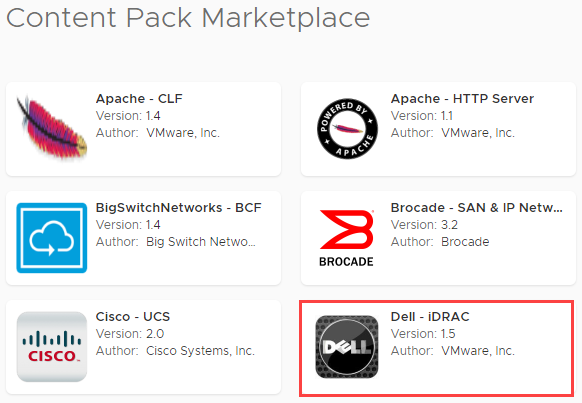
The “Install Content Pack” dialog box opens, which contains information about the supported endpoints. Once reviewed, tick the check box indicating that you agree to the terms of service, then click on the “Install” button.
Configure an Alert Definition
Using the same browser window in Aria Operations for Logs, click on the “Alerts” menu heading, then click on the “Alert Definitions” menu item.

The “Alert Definitions” page loads. Click on the “Create New” button, located at the top-right corner of the window.
A blank Alert Definition form launches. Click on the text box located at the top of the form and type the name you would like to assign for the Alert Definition. In this example, we will use “iDRAC – Login Activity by Service User“. This is simply a display name for the Alert Definition, so feel free to use whatever makes sense for your environment. Note that for the sake of this example, we are referring to the “Service User” account generically and the username is simply “serviceuser”. Substitute a privileged account from your environment to make the example relevant to you.
Although not required, it is recommended that you type a brief description inside the “Description” text box. This will not only remind you of the purpose this Alert Definition serves, but may also be referenced by your colleagues.

Notice that the “Text contains” text field is blank. This is where we begin building our log query, also known as our alert criteria. Instead of typing inside the “Text contains” box, click on the “Add Filter” button, located to the right.

Notice that an additional field has appeared. Click on the “Add Filter” button two more times, resulting in a total of three query fields beneath the first “Text contains” field. Using the drop-down menus and text fields, select/populate the information shown below:
| Field Type | Operator | Text Value | Remarks |
|---|---|---|---|
| dell_idrac_message | Contains | Successfully logged in | - |
| dell_idrac_message | Contains | serviceuser | Replace the text value with the username of the privileged account in your environment. |
| dell_idrac_message | Does not contain | 192.168.1.1 | Replace the IP Address below with a TRUSTED IP Address. Authentications which DO NOT originate from this IP Address will generate an alert. |

Locate the “Trigger Conditions” section below. As you can see, there is some flexibility with respect to the alert sensitivity. Perhaps you only want to receive an alert if the query returns a minimum of 3 authentication instances, or group the alerts by another value, such as site. In this example, we want to receive alerts immediately and without grouping.
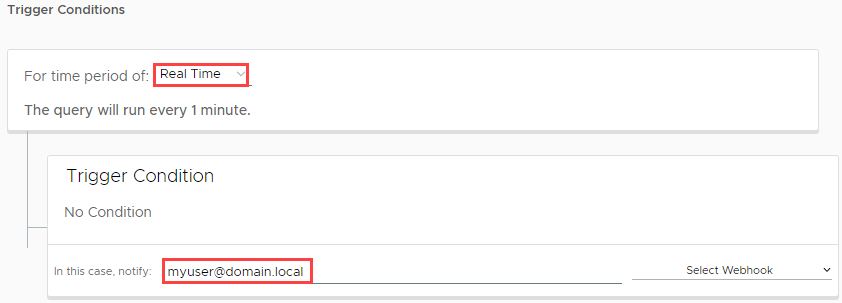
Click on the “5 minutes” drop down box, located beneath the “Trigger Conditions” heading, then click on the “Real Time” menu item. Notice that the grouping and event counts menus have disappeared.
Inside the “In this case, notify” text field, type or paste a list of comma separated e-mail addresses which should receive an e-mail notification when an alert is triggered. You can update this field (among others) later if needed.
If you would like to provide guidance to colleagues within the e-mail notification, you may type inside of the “Recommendations” text box, located at the bottom of the page. This text is only visible when a notification is dispatched by e-mail or webhook. This field is optional and can be updated later, if needed.
Click on the “Save” button, located at the top-right corner of the window to save and enable the Alert Definition.
Finally, we are all set! You may test by authenticating to the server iDRAC using the privileged (“serviceuser”) account credentials. Ensure you perform this action from a system with a different IP Address than defined in the query field above. Recall, the query will exclude (hence the “does not contain” operator) from the alert criteria – we want to alert on authentications originating from any other source.
Final Thoughts
You may wonder how we knew that the forwarded Syslog message would say “Successfully logged in”, among other things. The first and often “best” way is to simply review the logs collected by Aria Operations for Logs. Make effective use of your filters, especially with respect to time. Good filtering techniques will quickly help narrow down the results so you can find the proverbial “needle in the haystack”. Once a log record of interest is located, you can identify unique values and fields, which can then be used to build meaningful Alert Definitions.
Application and platform developers commonly publish troubleshooting and development documents which may describe unique error/message codes. For example, the “Message ID” for successful user authentications on a given iDRAC system is “USR0030”. This code, among others, is available via the “Event and Error Message Reference Guide“, published by Dell. Note that the linked guide only applies to the 13th generation of Dell PowerEdge Servers, so you may need to locate a similar document for prior/future generations, or different manufacturers altogether.
When creating Alert Definitions or search queries in general, you should always seek to identify values which are consistent, such as Message ID’s or codes. Ideally, the value should be something which applies across multiple (similar) systems, user accounts, etc. Avoid unique fields or values when possible, as the value may contain different values or be missing altogether across various systems or future software releases.